
Recent Posts
Recent Comments
Link
| 일 | 월 | 화 | 수 | 목 | 금 | 토 |
|---|---|---|---|---|---|---|
| 1 | 2 | 3 | 4 | 5 | 6 | |
| 7 | 8 | 9 | 10 | 11 | 12 | 13 |
| 14 | 15 | 16 | 17 | 18 | 19 | 20 |
| 21 | 22 | 23 | 24 | 25 | 26 | 27 |
| 28 | 29 | 30 |
Tags
- llm을 활용 단어장 앱 개발일지
- Widget
- Image Processing
- FastAPI
- rao
- Dreamhack
- BOF
- 파이토치 트랜스포머를 활용한 자연어 처리와 컴퓨터비전 심층학습
- bloc
- PCA
- 백준
- Kaggle
- Stream
- BFS
- BAEKJOON
- pytorch
- 영상처리
- study book
- C++
- Got
- ML
- Flutter
- Algorithm
- Computer Architecture
- ARM
- DART
- MATLAB
- MDP
- fastapi를 사용한 파이썬 웹 개발
- system hacking
Archives
Today
|
Total
Bull
[Flutter::Widget] Dialog 종류 본문
편의상 작업하던 프로젝트에서 예제를 적용하여 보이겠습니다.
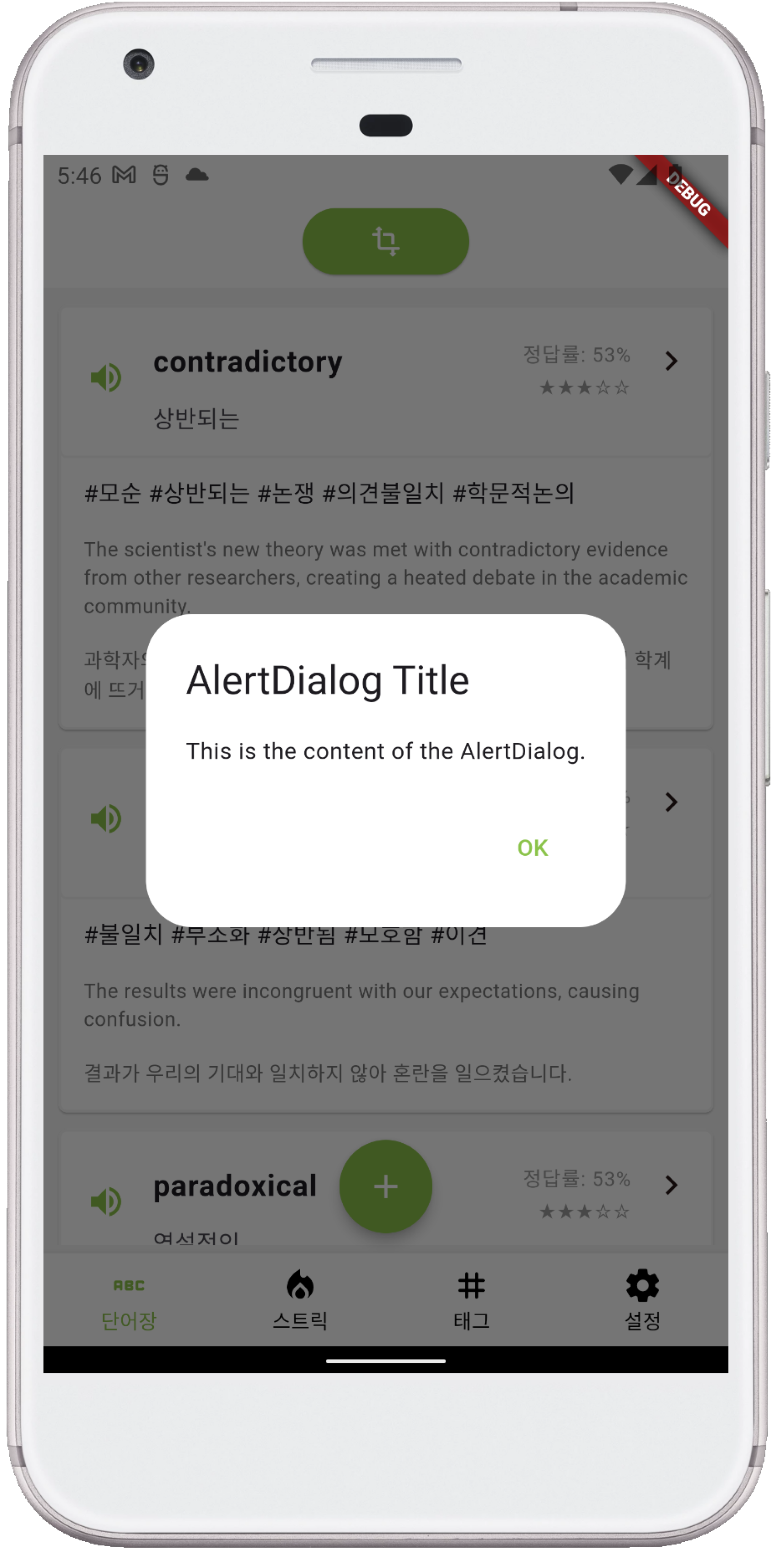
1. AlertDialog
가장 일반적인 다이얼로그로, 경고 메시지나 중요한 정보를 사용자에게 알릴 때 사용한다. 제목(title), 내용(content), 그리고 하나 이상의 버튼(actions)으로 구성된다.
showDialog(
  context: context,
  builder: (BuildContext context) {
    return AlertDialog(
      title: Text('AlertDialog Title'),
      backgroundColor: Colors.white,
      content: Text('This is the content of the AlertDialog.'),
      actions: <Widget>[
        TextButton(
          onPressed: () {
            Navigator.of(context).pop();
          },
          child: Text('OK', style: TextStyle(color: Colors.lightGreen)),
        ),
      ],
    );
  },
);
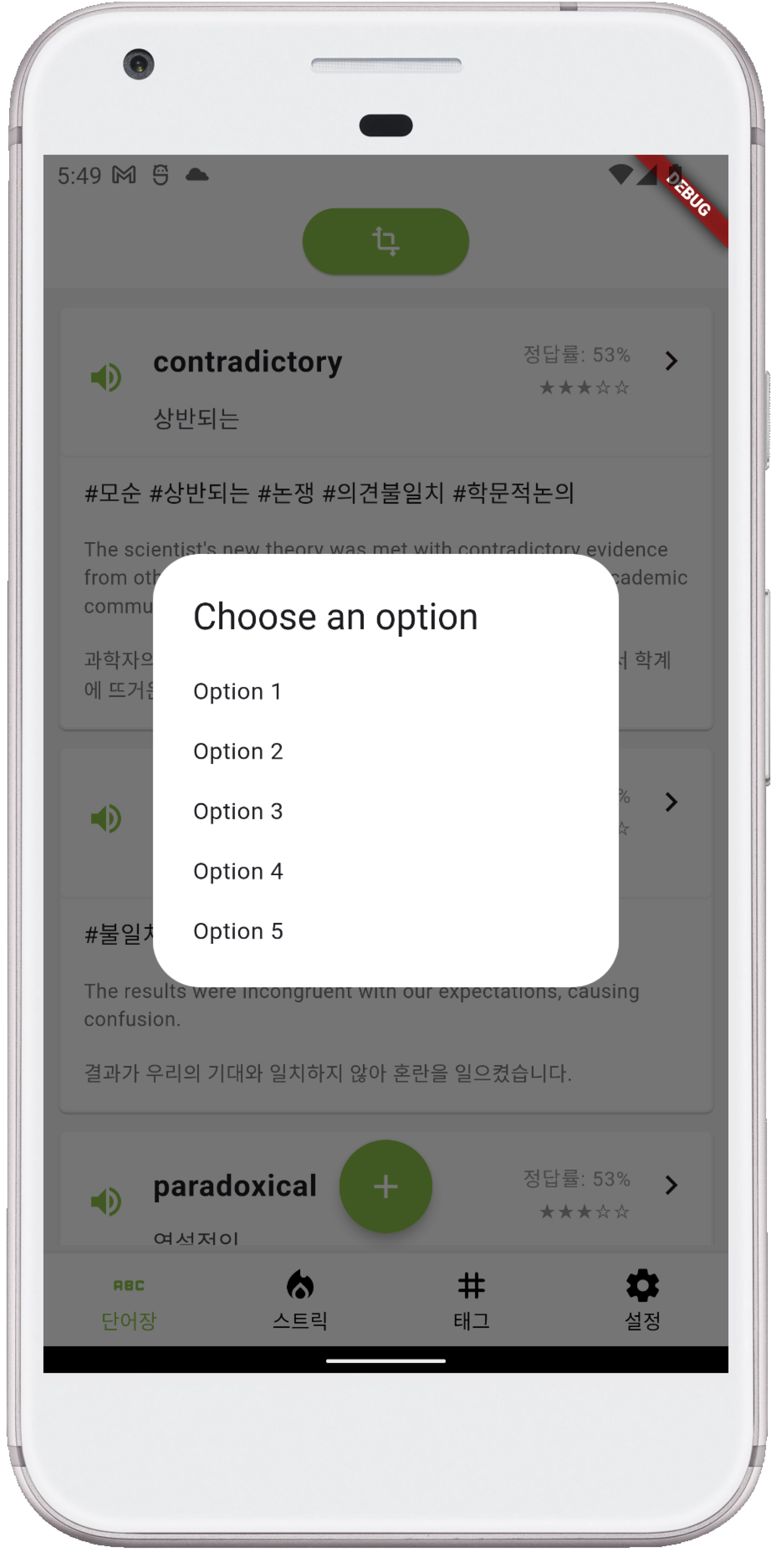
2. SimpleDialog
사용자가 선택할 수 있는 옵션을 목록 형태로 제공하는 다이얼로그다. 일반적으로 제목(title)과 여러 개의 선택 항목(children)으로 구성된다.
showDialog(
  context: context,
  builder: (BuildContext context) {
    return SimpleDialog(
      title: Text('Choose an option'),
      backgroundColor: Colors.white,
      children: <Widget>[
        SimpleDialogOption(
          onPressed: () {
            Navigator.of(context).pop();
          },
          child: Text('Option 1'),
        ),
        SimpleDialogOption(
          onPressed: () {
            Navigator.of(context).pop();
          },
          child: Text('Option 2'),
        ),
        SimpleDialogOption(
          onPressed: () {
            Navigator.of(context).pop();
          },
          child: Text('Option 3'),
        ),
        SimpleDialogOption(
          onPressed: () {
            Navigator.of(context).pop();
          },
          child: Text('Option 4'),
        ),
        SimpleDialogOption(
          onPressed: () {
            Navigator.of(context).pop();
          },
          child: Text('Option 5'),
        ),
      ],
    );
  },
);
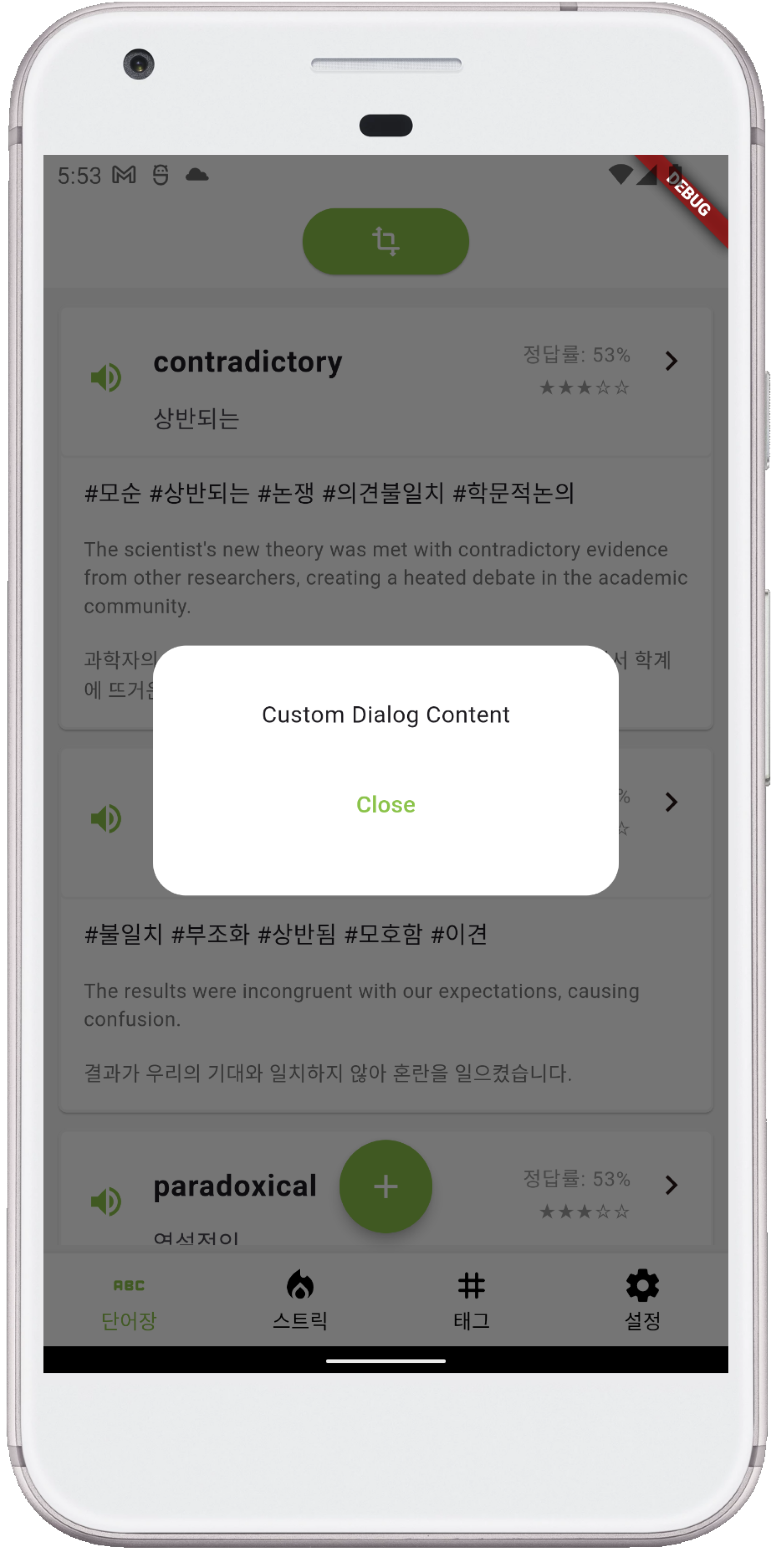
3. Custom Dialog
Flutter의 다이얼로그 위젯을 확장하여 완전히 사용자 정의된 다이얼로그를 만들 수 있다. Flutter 위젯을 자유롭게 사용하여 다이얼로그를 디자인할 수 있다.
showDialog(
  context: context,
  builder: (BuildContext context) {
    return Dialog(
      backgroundColor: Colors.white,
      shape: RoundedRectangleBorder(
        borderRadius: BorderRadius.circular(20.0),
      ),
      child: Container(
        height: 150,
        child: Padding(
          padding: const EdgeInsets.all(12.0),
          child: Column(
            mainAxisAlignment: MainAxisAlignment.center,
            children: <Widget>[
              Text('Custom Dialog Content'),
              SizedBox(height: 20),
              TextButton(
                onPressed: () {
                  Navigator.of(context).pop();
                },
                child: Text('Close', style: TextStyle(color: Colors.lightGreen)),
              ),
            ],
          ),
        ),
      ),
    );
  },
);
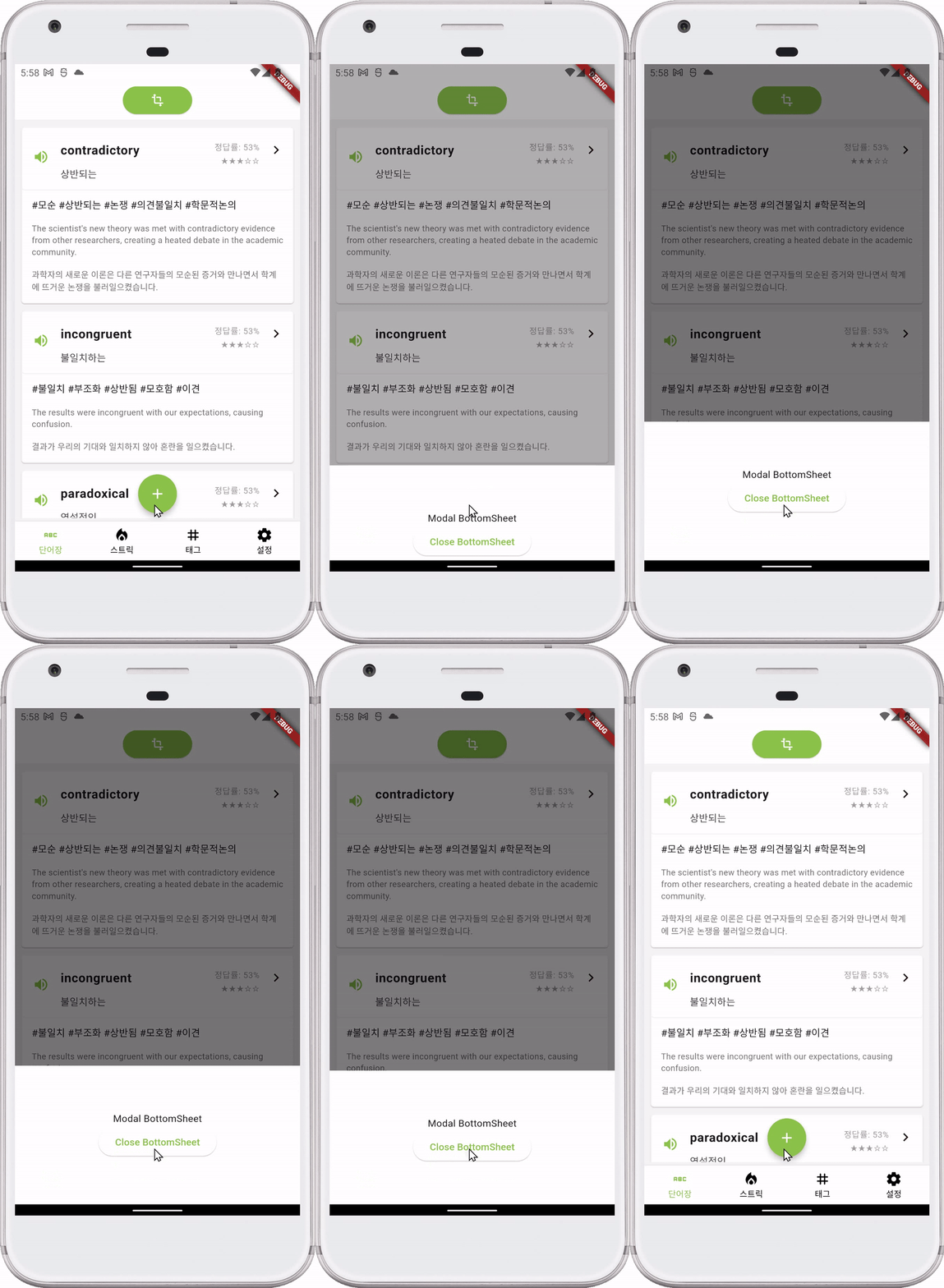
4. BottomSheet
화면 하단에서 슬라이드되어 올라오는 형태의 다이얼로그다. 모달(showModalBottomSheet) 또는 비모달(showBottomSheet)로 표시될 수 있다.
showModalBottomSheet(
  context: context,
  builder: (BuildContext context) {
    return Container(
      color: Colors.white,
      height: 200,
      child: Center(
        child: Column(
          mainAxisSize: MainAxisSize.min,
          children: <Widget>[
            Text('Modal BottomSheet'),
            ElevatedButton(
              onPressed: () {
                Navigator.pop(context);
              },
              child: Text(
                'Close BottomSheet',
                style: TextStyle(color: Colors.lightGreen),
              ),
              style: ButtonStyle(
                backgroundColor:
                    WidgetStateProperty.all(Colors.white),
              ),
            ),
          ],
        ),
      ),
    );
  },
);
5. TimePickerDialog & DatePickerDialog
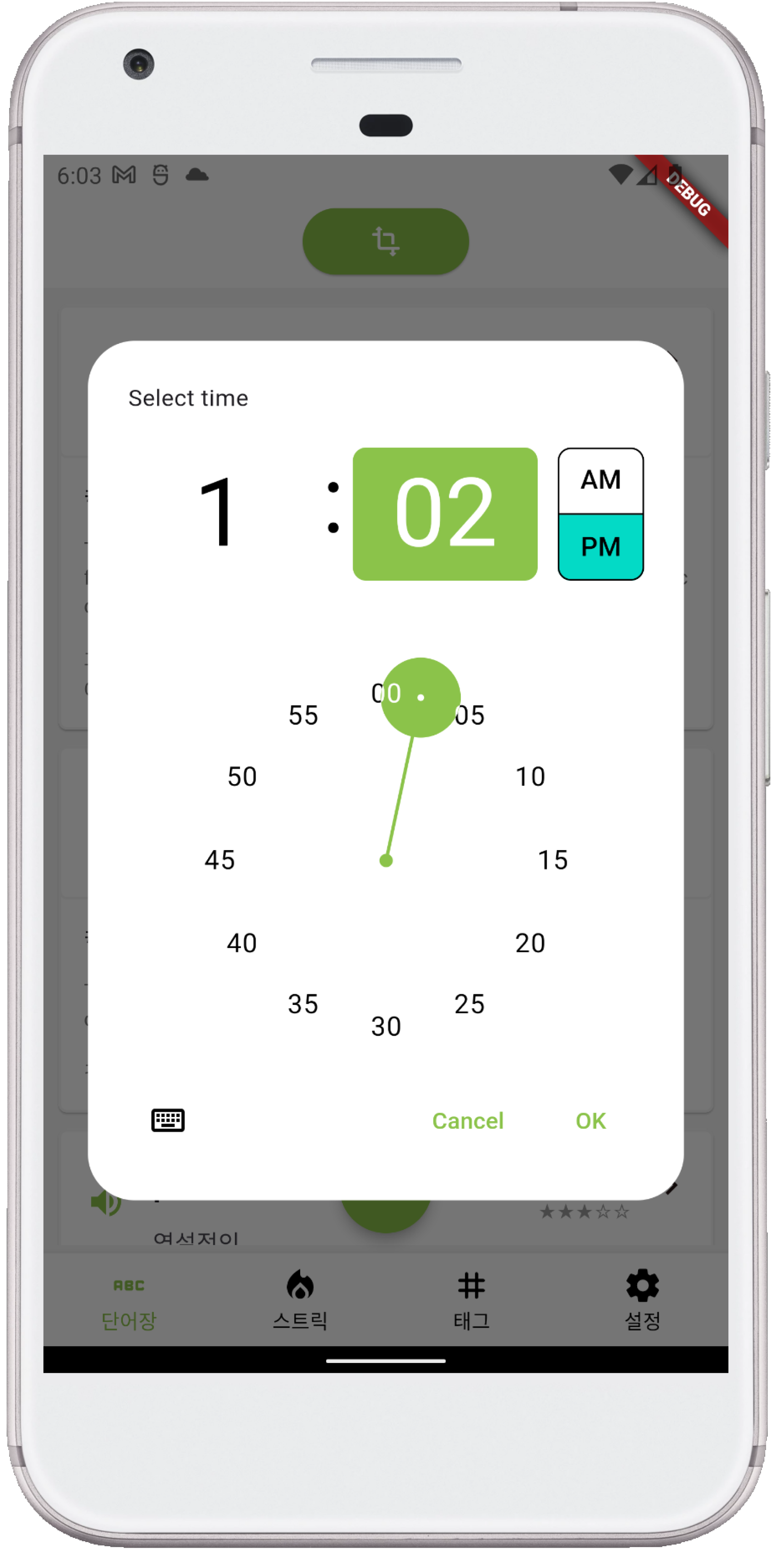
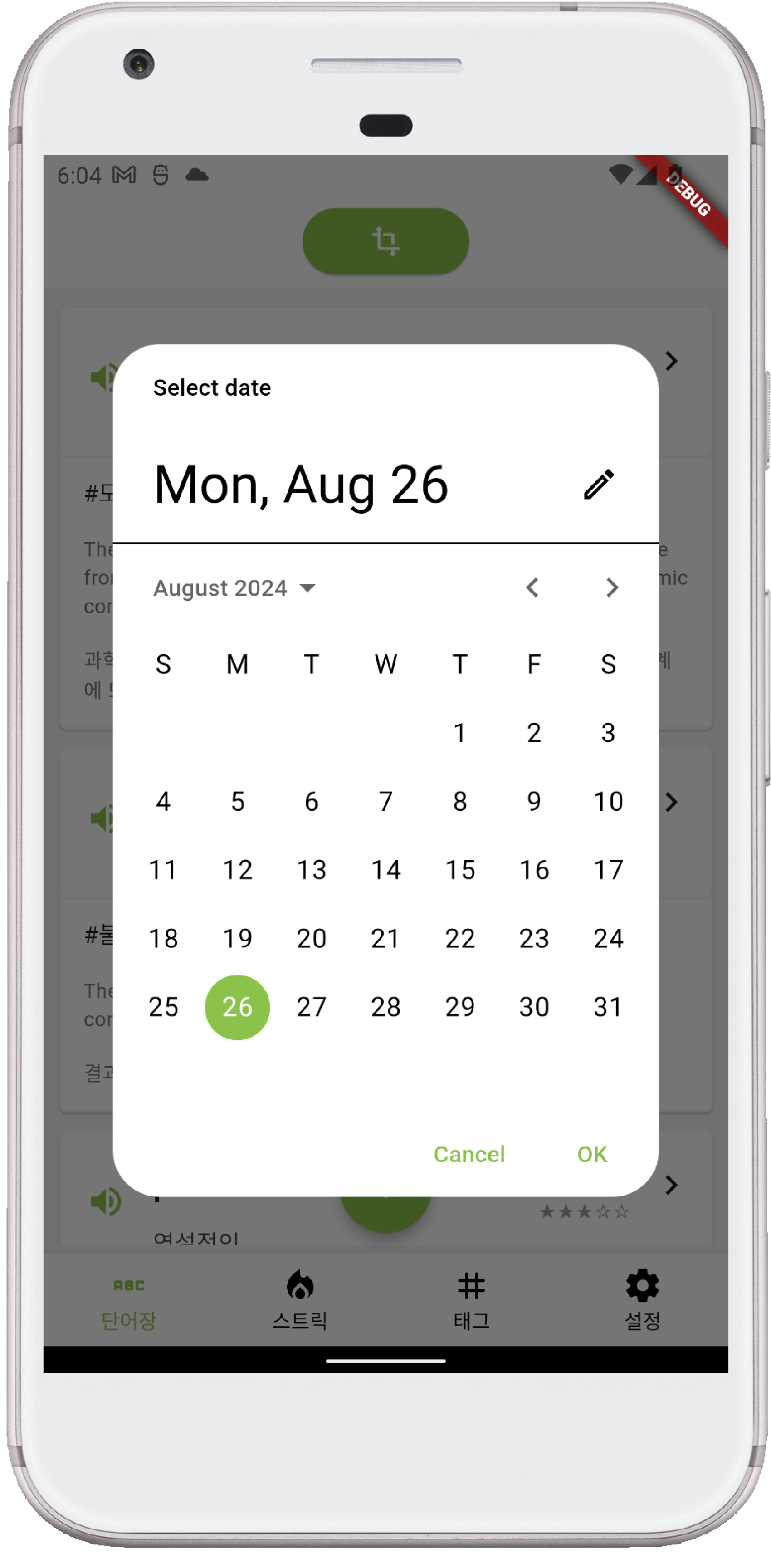
사용자가 시간을 선택하도록 하는 다이얼로그(TimePickerDialog)와 날짜를 선택하도록 하는 다이얼로그(DatePickerDialog)다.
TimePickerDialog
showTimePicker(
  context: context,
  initialTime: TimeOfDay.now(),
  builder: (context, child) => Theme(
    data: ThemeData.light().copyWith(
      colorScheme: ColorScheme.light(
        primary: Colors.lightGreen,
      ),
    ),
    child: Container(
      height: 200,
      width: 200,
      child: child,
    ),
  ),
).then((TimeOfDay? time) {
  if (time != null) {
    print('Selected time: ${time.format(context)}');
  }
});
DatePickerDialog
showDatePicker(
  context: context,
  initialDate: DateTime.now(),
  firstDate: DateTime(2000),
  lastDate: DateTime(2101),
  builder: (context, child) => Theme(
    data: ThemeData.light().copyWith(
      colorScheme: ColorScheme.light(
        primary: Colors.lightGreen,
      ),
    ),
    child: child!,
  ),
).then((DateTime? date) {
  if (date != null) {
    print('Selected date: ${date.toLocal()}');
  }
});
'Software Framework > Flutter' 카테고리의 다른 글
| [Flutter::Widget] Netiveview(ImagePicker)에서 상태 변경으로 이미지가 렌더링될 때 스크롤 하는 방법 (1) | 2024.09.01 |
|---|---|
| [Flutter::Widget] StatefulBuilder (0) | 2024.08.27 |
| [Flutter::State] ChangeNotifierProvider와 Provider 차이 (0) | 2024.08.23 |
| [Flutter::package] "pdf" package review 하기 (0) | 2024.08.21 |
| [Flutter::News] LG TV webOS 기반 애플리케이션 Flutter 추진 요약 (0) | 2024.08.20 |
'Software Framework/Flutter' Related Articles
more


